Credit Repair Software - All-In-One Credit Dispute System with CRM, Metro2, Apps & More
info@disputefox.com
2FA
DisputeFox
How to Setup Google Authenticator App
Fully secure your account
Disputefox Two-Factor Authentication (2FA)
1. What is Two-Factor Authentication (2FA)?
Two-Factor Authentication adds an extra layer of security to your Disputefox account. Instead of relying only on your password, 2FA requires a temporary 6-digit verification code generated by an authenticator app on your phone to confirm your identity during login.
2. How do I enable 2FA on my Disputefox account?
When you log in, you will see an Enable Two-Factor Authentication prompt. To set it up:
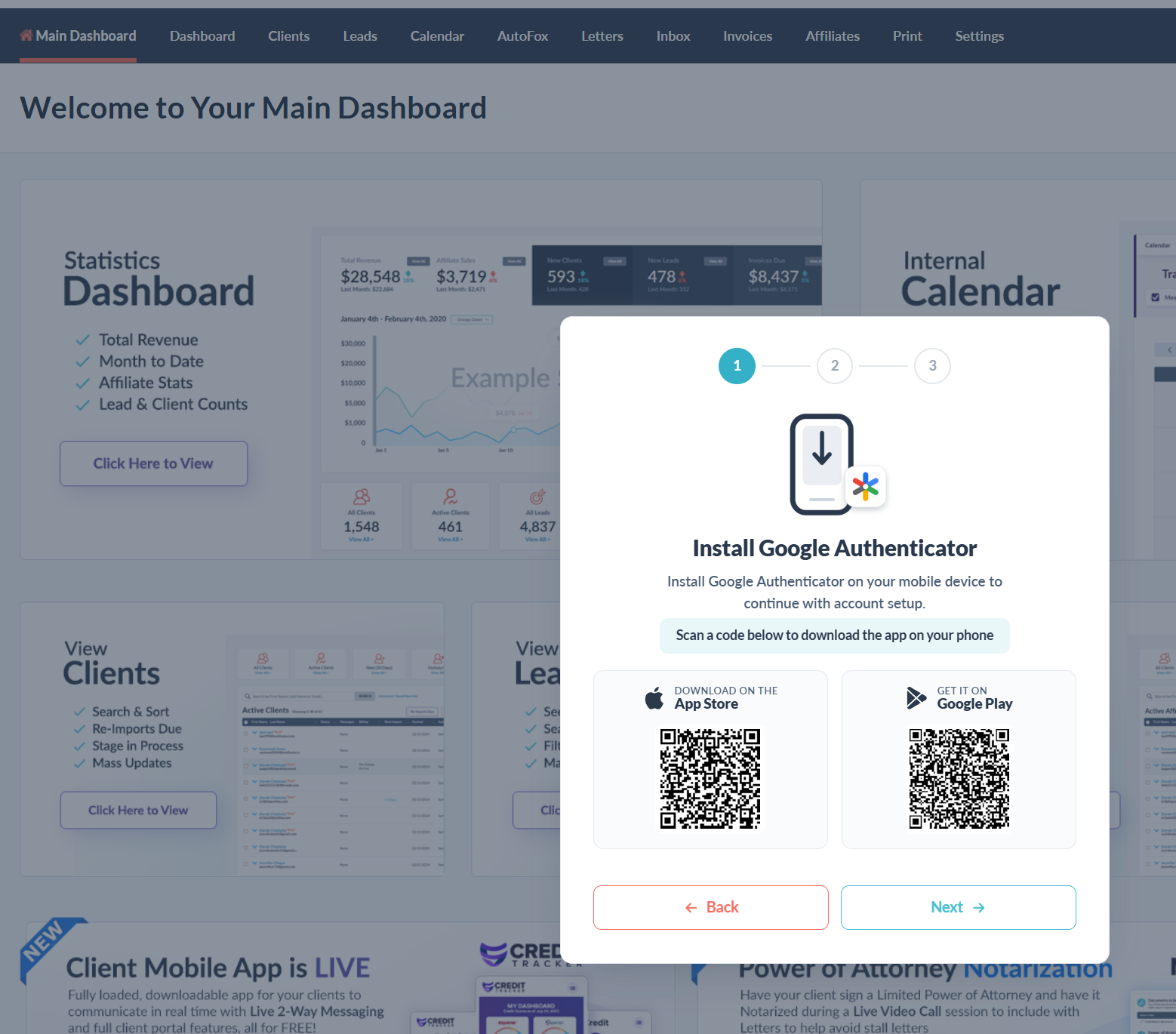
Download an app: Install Google Authenticator (or any standard authenticator app) on your mobile device from the App Store or Google Play Store.
Scan the QR code: Open the app and use your phone's camera to scan the QR code displayed on the Disputefox screen.
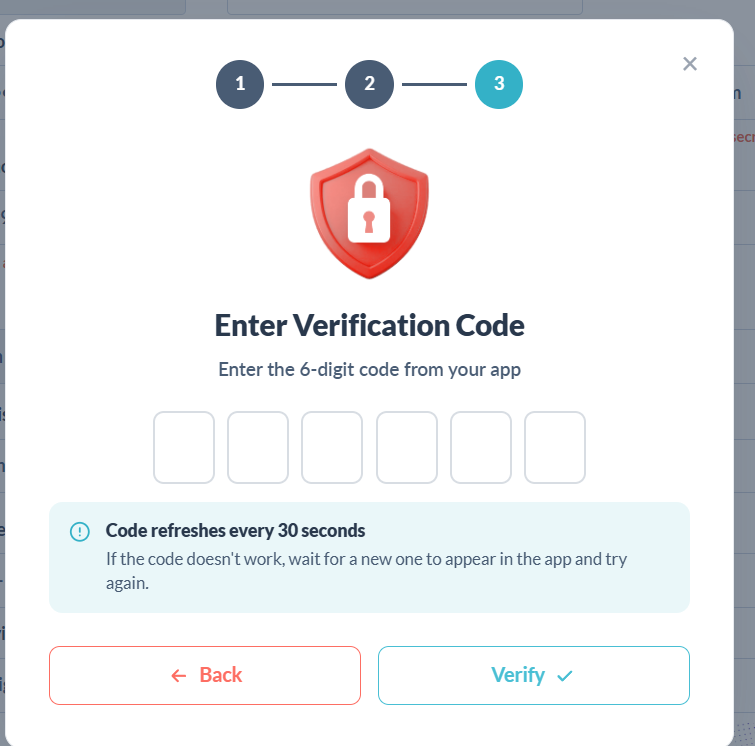
Verify: Enter the current 6-digit code shown in your app into the Disputefox verification field to complete the setup.
3. What changes during my next login after enabling 2FA?
Once enabled, your future logins will be streamlined:
No more OTPs or Secret Codes: You will no longer receive or need to enter old email/SMS OTPs or system secret codes.
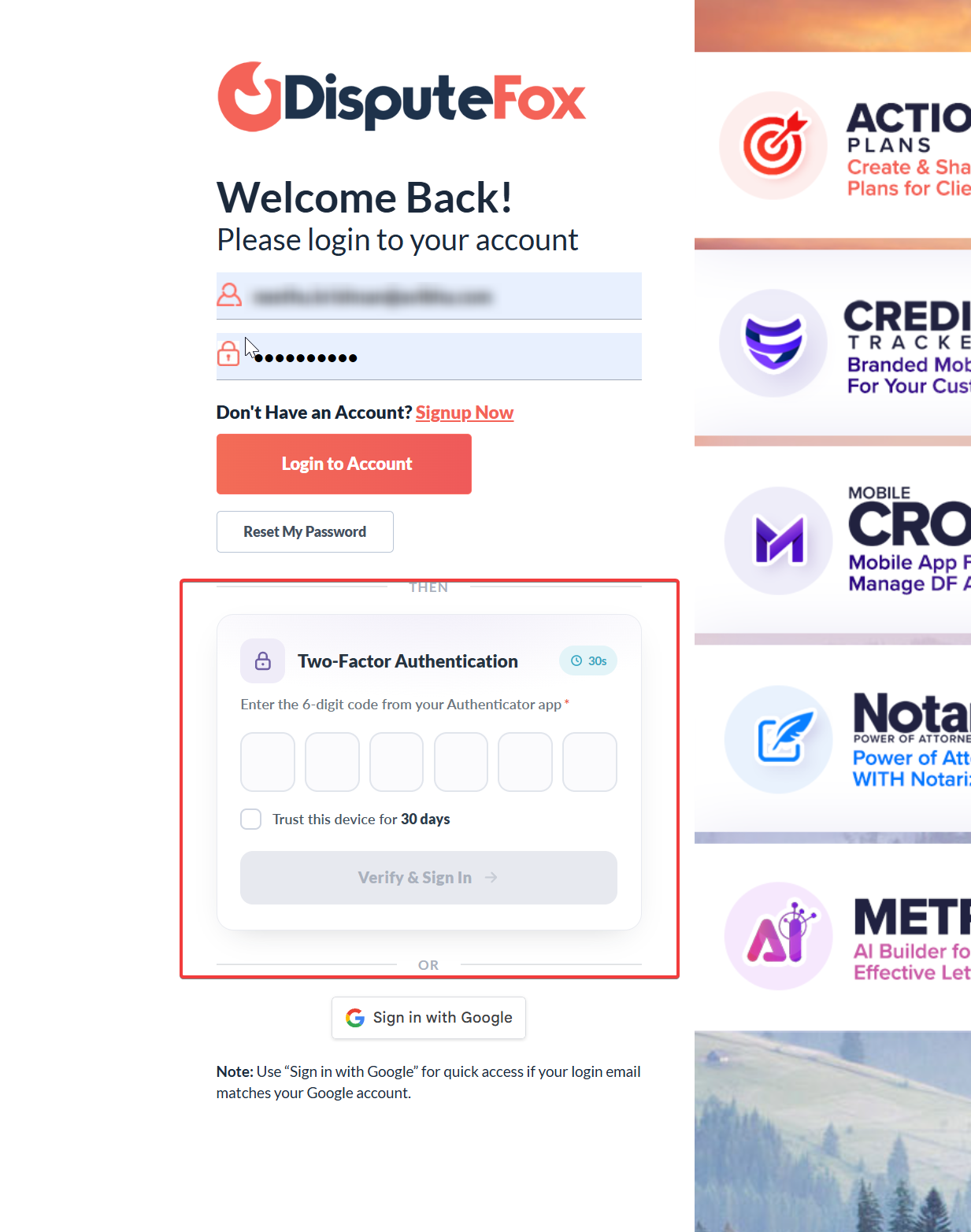
App Code Required: Instead, Disputefox will simply prompt you to enter the live 6-digit verification code directly from your Google Authenticator app to log in.
Trust This Device: During login, you can check the "Trust this device for 30 days" box. If checked, you won't have to enter a 2FA code on that specific browser for the next 30 days.
4. Does this apply if I use "Sign in with Google"?
No. If you log into Disputefox using the Google Sign-In button, you will not be prompted for a 6-digit Disputefox code. Because Google already manages your account security, the Disputefox 2FA code step is automatically bypassed for a faster login.
5. Can I skip the 2FA setup prompt when logging in?
No. Two-Factor Authentication (2FA) is required for all DisputeFox accounts to ensure security. When you see the setup popup during login, you must complete one of the following actions:
Set up now: Follow the on-screen steps to secure your account immediately (recommended)
Remind me later: Temporarily dismisses the popup, but the prompt will reappear during your next login until 2FA is enabled
Never again: Does not disable 2FA requirement — you will still be prompted to enable it on future logins
6. Can I manually enable or disable 2-step login later?
Yes, you have full control over this at any time from your settings:
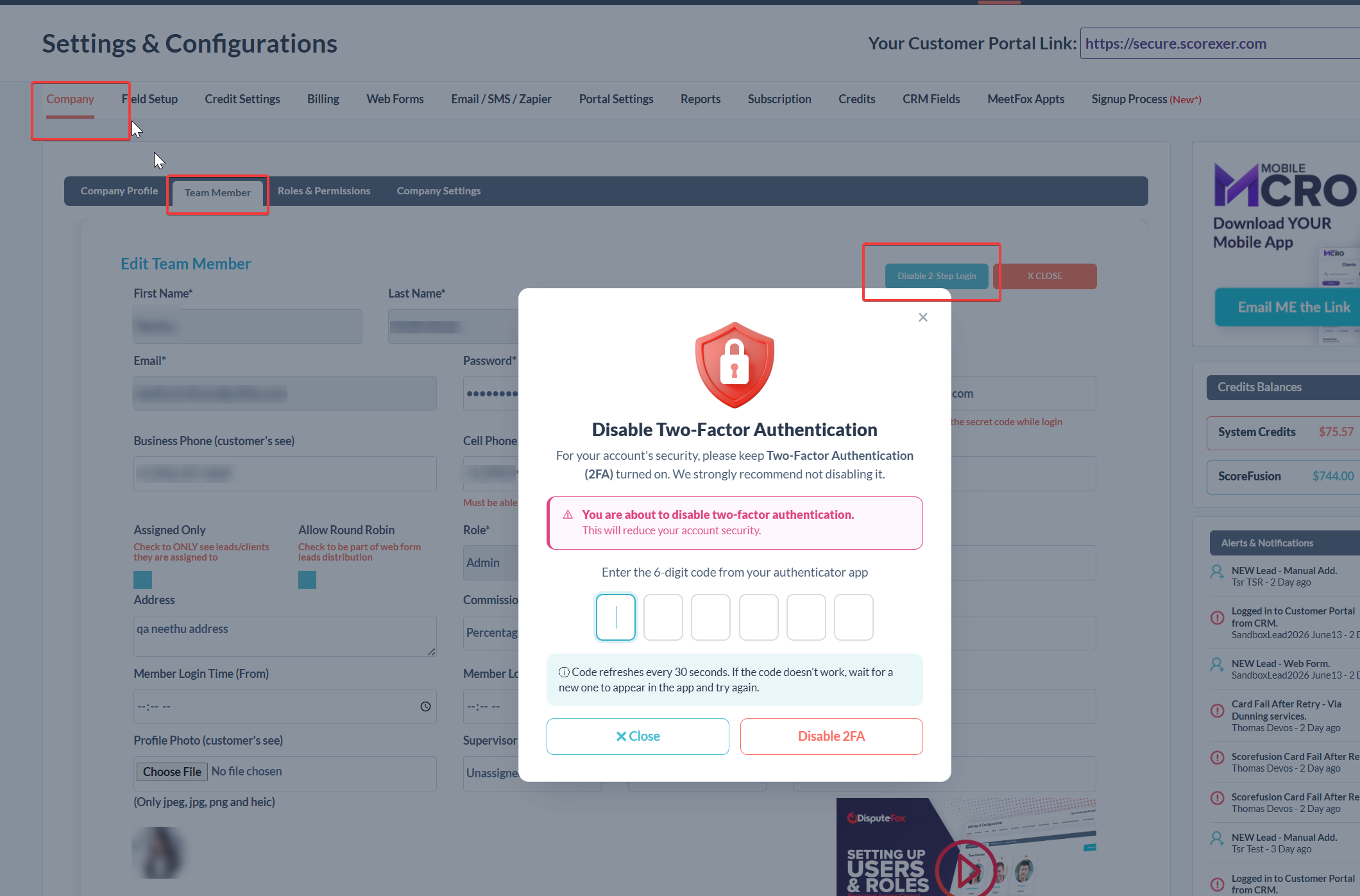
To Enable it later (if you skipped it): Navigate to Settings > Team Member, find your user profile, locate the 2-step login section, and click Enable 2-step login.
To Disable it: Navigate to Settings > Team Member, find your user profile, locate the 2-step login section, and click Disable 2-step login.
7. What should I do if I lose access to my Authenticator app?
If you get a new phone or accidentally delete your authenticator app, you will not be able to log in. Please contact Disputefox Support to have your 2FA settings securely reset so you can regain access and re-register your app.
8. What if I already have Google Authenticator App?
If you already have the Google Authenticator app installed on your phone, you can still use it for DisputeFox 2FA.
Simply:
Scan the QR code displayed during the 2FA setup with your phone
Click the link
A new “Token” for DisputeFox will be added to your existing Google Authenticator app
You can now manage multiple accounts within the same app.
Still Have Some Questions?
Schedule a FREE Consultation with one of our Fox Pros